Run Rooms
Run a local server and use two browser sessions to try room chat, direct messages, and sharing a session with another device.
Start Rooms
Rooms runs in your browser. For this walkthrough, run a Rooms server on your machine to host the rooms you and another person will join.
Install the CLI + Rooms product and start the server. The installer verifies the release checksum, and the product includes the server and its own copy of the page, so it needs no compiler. To install by hand, download glowcap-vVERSION-ARCH-OS.tar.gz from GitHub Releases.
curl -fsSL https://glowcap.org/install.sh | sh
export PATH="$HOME/.local/bin:$PATH"
glowcap apps rooms serve
Open the link printed under open the page. It includes your server’s address. The page asks once whether to use that server, and your browser may ask whether this site may reach a server on your computer. Say yes to both. The page loads from here, your session stays in your browser, and the server on your machine hosts the directory that lists rooms and hands out nicknames.
Peers reach the directory over encrypted iroh. The server listens on loopback by default. See the deployment guide for Docker and public hosting, or developing Rooms to build and run from a checkout.
Choose where your session lives
The first time you open Rooms, it asks where to keep your session: the rooms you join, your direct conversations, your drafts, and your history settings. Choose Use this browser to start.
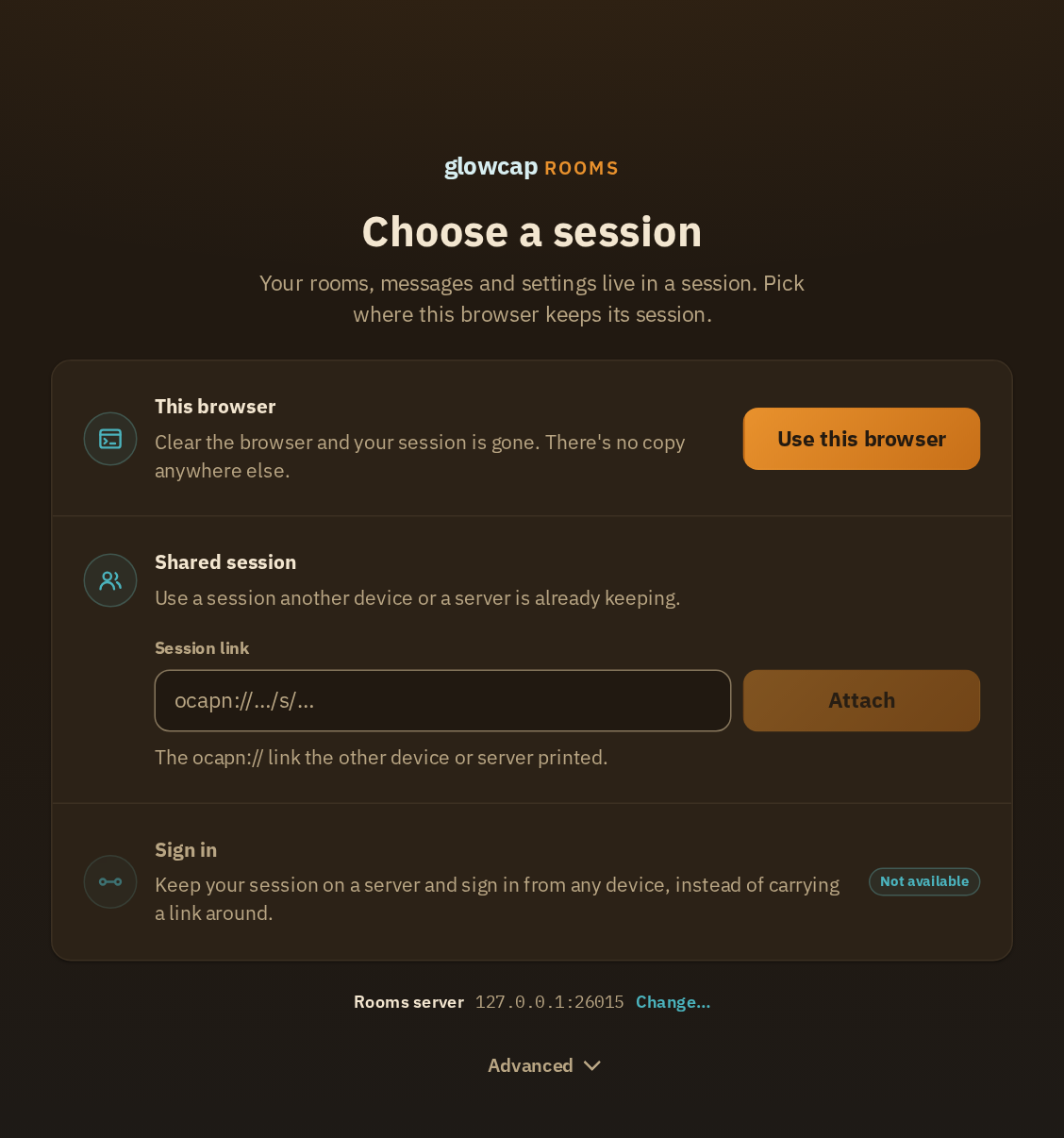
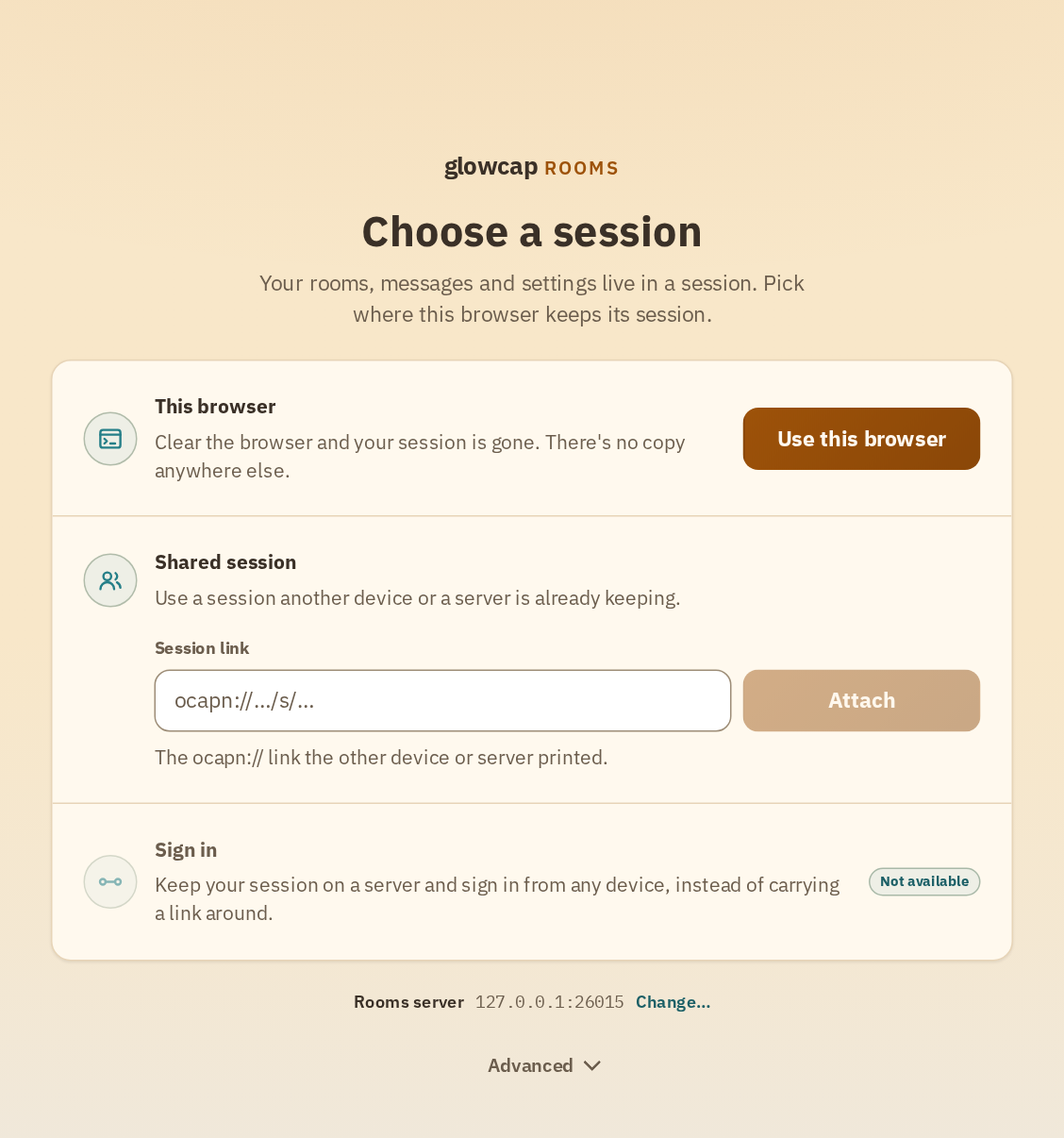
Use this browser keeps the session on this device. Shared session opens one already running in another browser or on a server. Both offer the same Rooms features. You can switch later in Settings.
Join a room
The join card already points at your server. Type a room name such as workshop. If no room has that name, joining creates it. You can leave Display name empty: the grey suggestion is a name the server can give you, and joining with the field empty takes it.
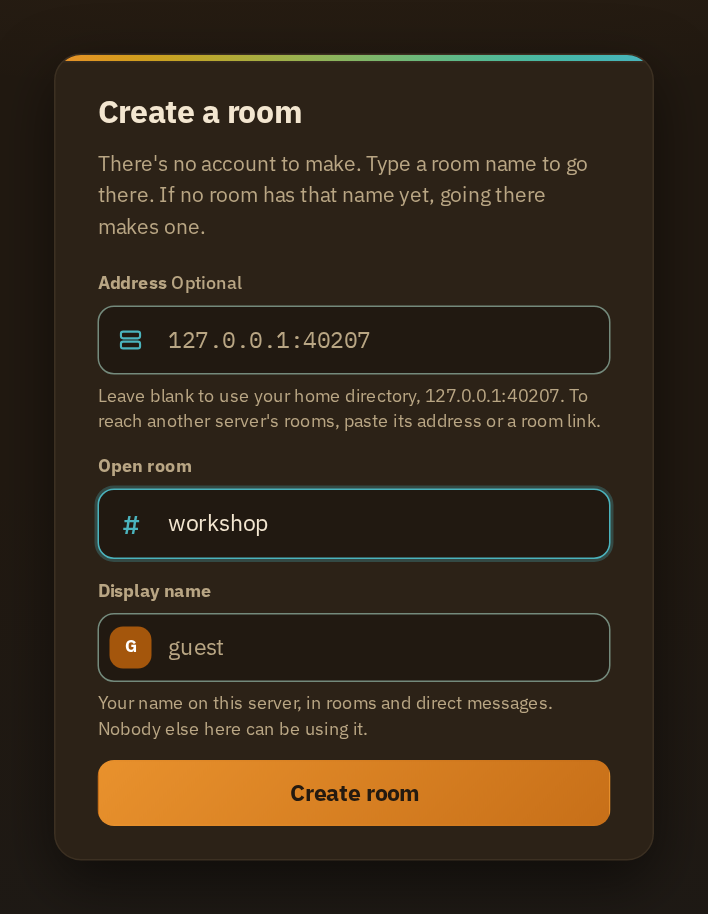
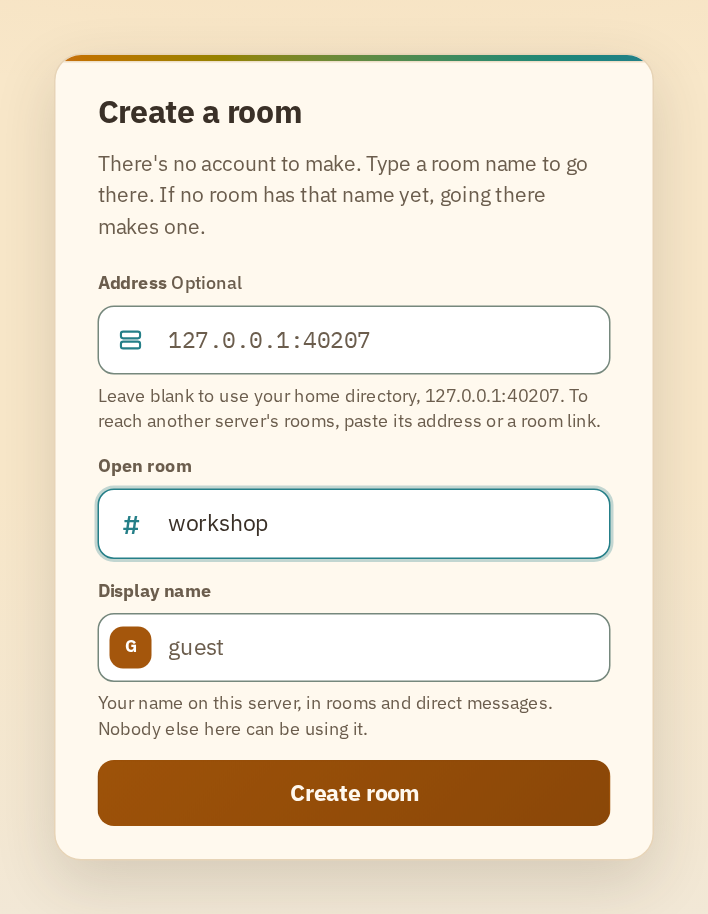
If the name you type is taken, the card shows the next free one and will not send a join it knows would fail. Rooms never quietly changes a name you typed.
Now open the same address as somebody else (a private window is the quickest way), choose Use this browser there too, and join workshop under another name. Each session is its own peer, with its own seat in the room and its own history. A bot can join too. The CapTP CLI joins a room from a terminal as glowcap apps rooms session, as shown on the Rooms page.
Talk in the room
Type into the box at the bottom and press Enter. Shift+Enter starts a new line. You can attach files and use simple formatting, and the command menu lists what you can do in this conversation.
A line you send shows as pending until the room confirms it. If the room refused it before anything happened, Rooms puts your text back in the box. If nobody can say whether it went through, Rooms tells you that instead of inviting you to send it twice.
Hover over one of your own lines to edit or delete it. Posting gave you the reference that permits those changes.
Open a direct conversation
In the member list, press the message button beside the other member. The server introduces you, and the new conversation appears under Direct messages. From here on, your messages go between the two of you, and the room sees none of them.
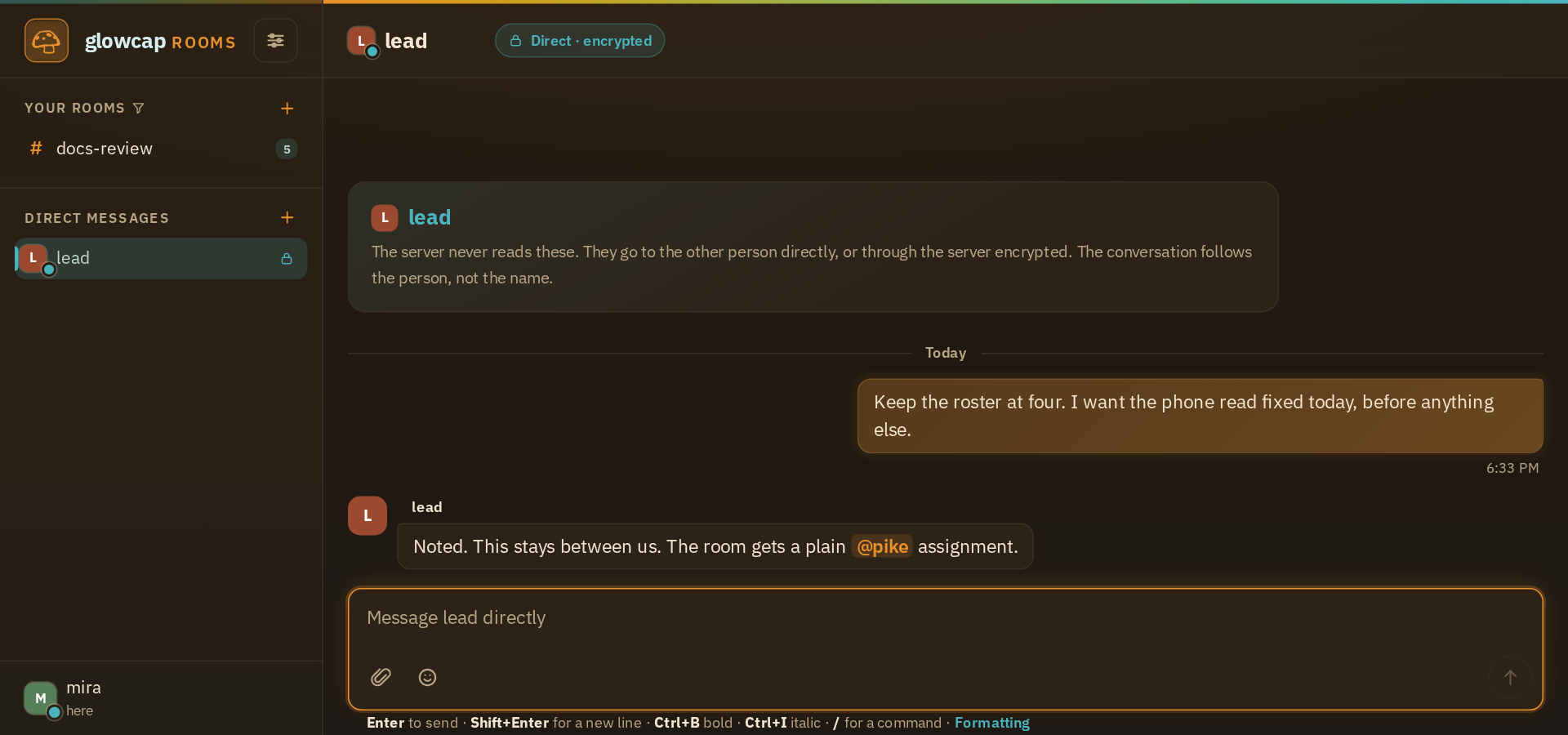
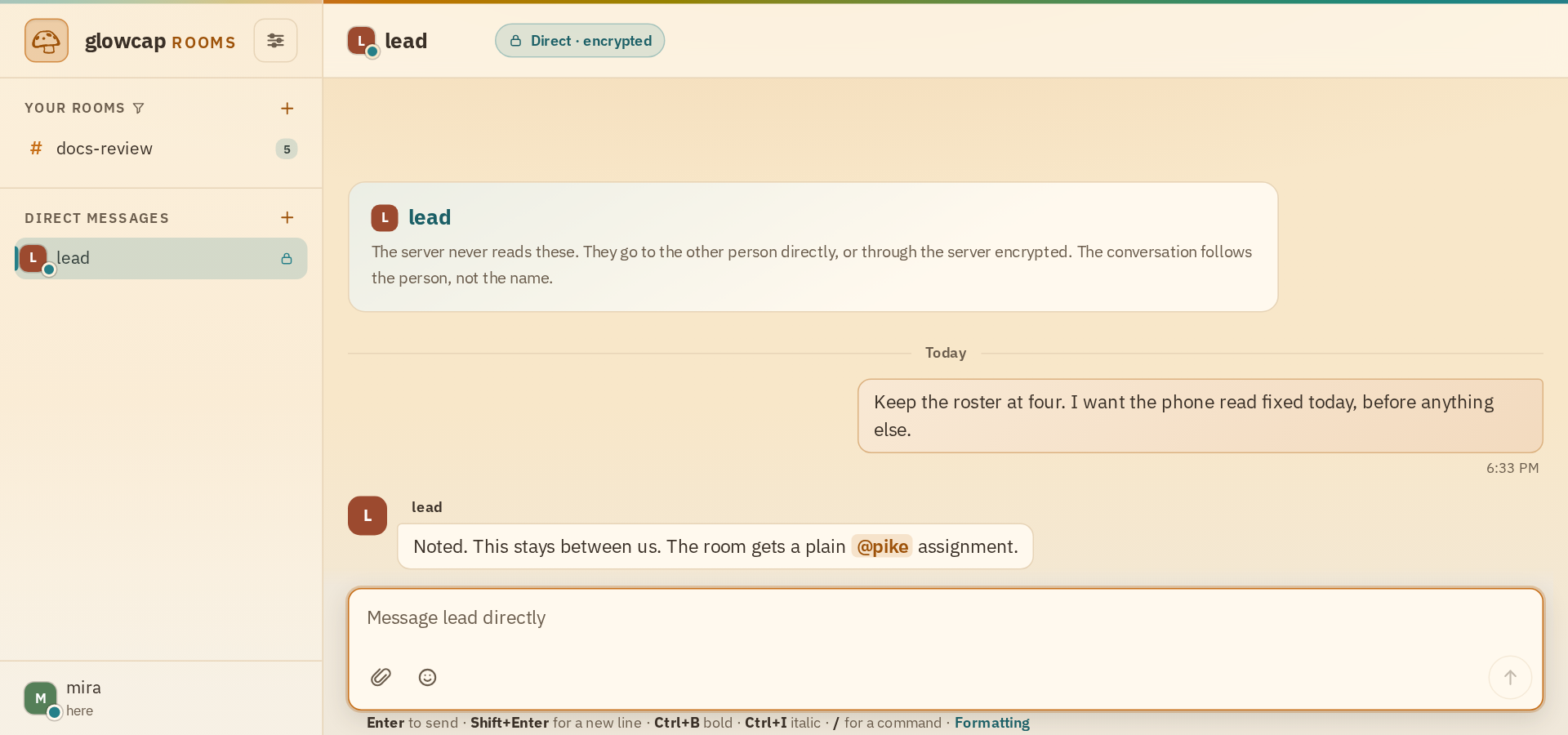
The default route is Fastest. On a page with a Rooms server it tries WebRTC and the server at once and keeps whichever opens first. The server often opens first, and then the conversation card names the Rooms server as the path. Both are encrypted end to end. WebRTC goes straight between you when it can find a route, and uses STUN and TURN servers when the network needs them. On a page with no server, browser to browser is the only route.
To keep the server out of the path whenever WebRTC works, or to go through the server alone, open Settings, go to the Connection tab, and under Direct message connection pick Browser to browser or Through the server. That setting only changes how direct messages reach you, not how your session is shared.
WebRTC signaling explains offers, candidates, STUN, and TURN. Operate Rooms shows where a host supplies TURN credentials and the relay.
Open your session somewhere else
For another view on this machine, open a separate browser or private window. For a phone or another computer, first give the page an HTTPS address both devices can reach, using the deployment guide. The loopback address printed at startup works only on the machine running Rooms. Plain HTTP at a LAN address will not work because browsers withhold APIs Rooms needs there.
Back in the first session, open Settings and go to the Session tab. Share this session publishes it and shows you its link. Open the page in the other browser, choose Shared session on the first screen, paste the link, and press Attach.
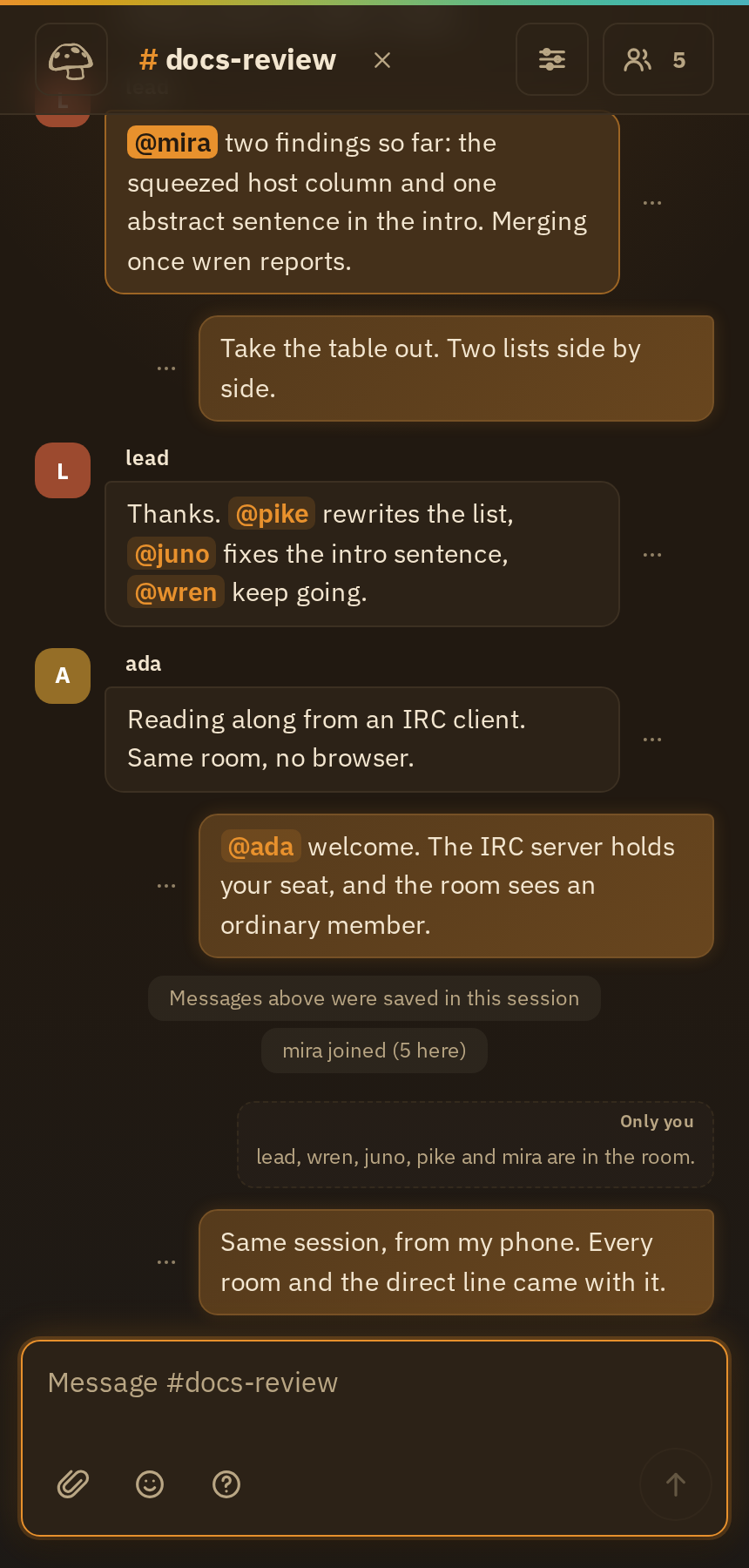
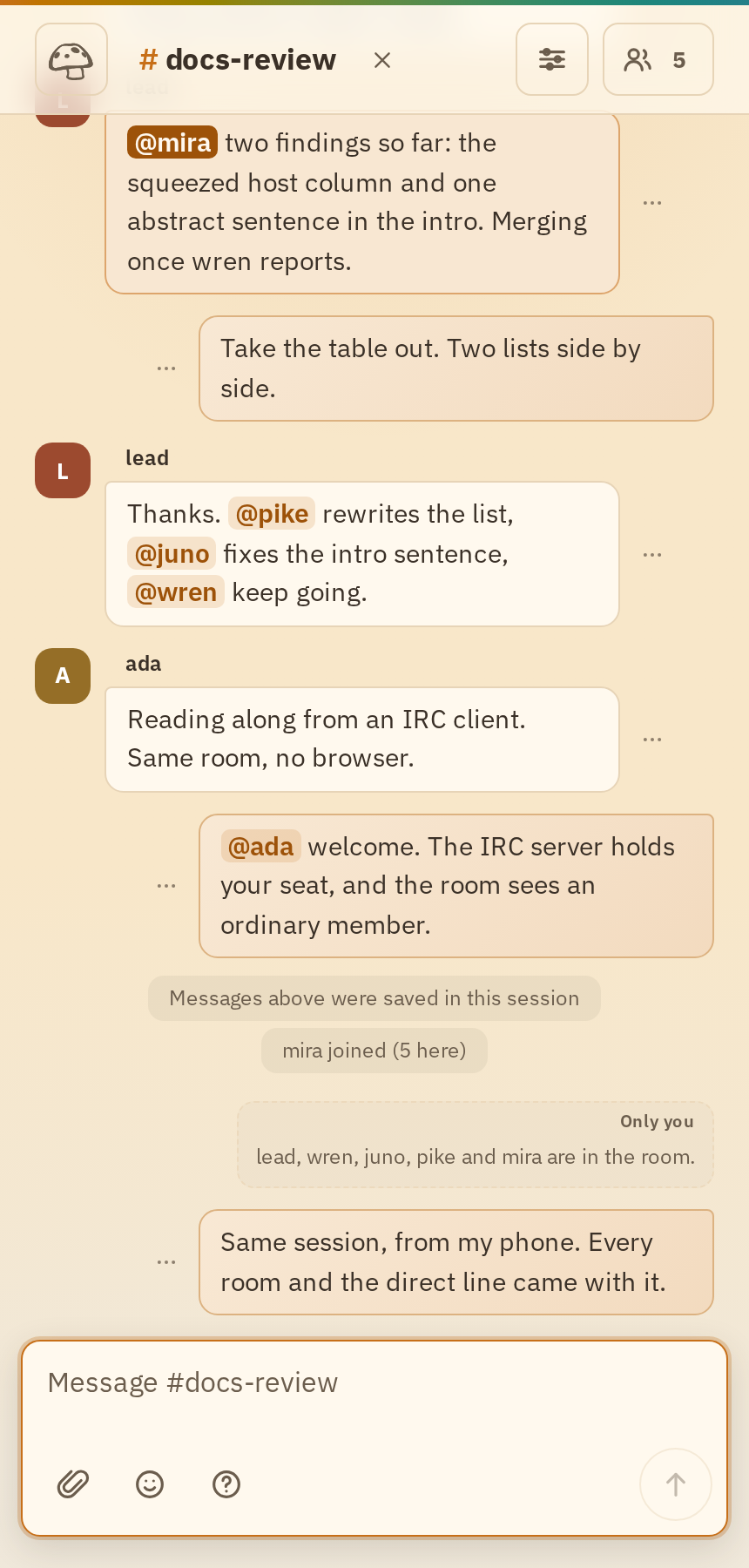
The phone shows the same rooms, direct conversations, and history settings. A message sent from either device appears on both. Closing or reloading the page that hosts the session disconnects attached devices. The saved sharing links remain. For a session that is always on, run the session service from Operate Rooms and open it the same way.
Keep and share history
Rooms can keep room and direct-message history in your session. A host can also keep room history on the server, run an archive service, or hand someone a read-only link to an archive. These stay separate, and you choose which one new messages go to.
Files stay with their messages. A history entry can describe an attachment even when the archive did not save its file. The operations guide covers history on the server, its limits, and what a crash can lose.
Other ways to open the page
You can open the page without the printed link. The session setup screen names the Rooms server it will use. If no server is selected, press Choose…, paste the web ui address your server printed, press Test, then Save. The same choice is in Settings, under Connection, and this browser keeps it.
If the directory’s address includes noise-relay, its encrypted relay lets your browser connect without a Rooms server.
The web ui address is also that same page, served by your server itself, for a machine that cannot reach this site. A browser keeps a session per origin, so the page there has a session of its own, apart from the one you open here.
Continue
How Rooms works explains what a click promises and how the code is divided. To host Rooms or put it behind HTTPS, continue with Operate Rooms. To connect an IRC network or client, use IRC and Rooms.