Operate Rooms
Hosting Rooms involves three connections you configure separately: browsers to the Rooms server, sessions to the directory, and peers to each other for direct messages. An HTTPS address for the server does not make every peer route reachable. Direct-message routes do not control session sharing.
Run the server
Rooms servers allow connections from the app on this site by default. To also allow a page you host, list both origins in --allow-origin, separated by commas or by repeating the option:
--allow-origin=https://glowcap.org/rooms/app/,https://rooms.example/
Give the server the address browsers reach it at, with --http-public:
--http-public=https://rooms.example/
The link printed under open the page works for anyone who can reach that server:
https://glowcap.org/rooms/app/?server=https://rooms.example/
The server also serves its own copy of the page at its web ui address, for an address of your own or a machine that cannot reach this site. Running Rooms on a host lists the server’s options.
For local development, zig build rooms-web runs a Rooms server on your machine, with its page and a directory over encrypted iroh in a temporary data directory. zig build rooms-dev keeps its state between runs and turns on every admin capability.
To host it from a checkout, install Docker with Compose, then run:
./glowcap apps rooms deployment up
That builds an image from your source and starts a Rooms server, an iroh directory, and one durable session service. The same command can check the stack, show its logs, stop it, and reset one part of it after saying what will be lost.
The example settings expose the Rooms server only on the host’s loopback address. To let other people’s browsers use it, put an HTTPS reverse proxy or a private network in front of it. That proxy does not guard the directory, which people reach over iroh with its own authentication. The deployment guide covers images, where state lives, and your own Compose settings. Its docker-compose.yml lists the environment variables.
Choose how people reach it
The directory’s transport decides how sessions reach it:
| Transport | Use it when |
|---|---|
| iroh | The default. Its channel authenticates the node key, with discovery and relays to help peers connect across NATs. |
| onion | You want a Tor onion service. The service key lives in the data directory, so the address survives a restart. |
| TCP | You are developing on your own machine. It is unencrypted and proves nothing about who answered. |
--listen adds a transport the directory accepts connections over. Declare each transport once:
--listen=<transport>[,<name>=<value>...]
The address the server prints includes the directory’s key and its transports. A browser can use noise-relay without a Rooms server. The relay forwards encrypted traffic between the peers. Other transports need a Rooms server to connect on the browser’s behalf. On an iroh route, that server verifies the directory’s key and can read the traffic.
The server prints an address you can paste only after it has opened every listener and loaded its saved identity. If that identity cannot be used, or another process already owns the data directory, the server stops instead of quietly making a new one.
Make sessions reachable
Incoming connections to a browser session use noise-relay, which encrypts traffic between the peers. The relay guide explains how a peer reaches a browser through the relay.
Direct messages over WebRTC need ICE servers, which help two peers find a network path. STUN helps them find a direct route, and TURN carries the traffic when a network will not allow one. Rooms can take a fixed list of STUN servers, and ask a TLS service for short-lived TURN credentials without giving the page that service’s secret.
If two peers exchange an offer but cannot find a route, set Direct message connection to Through the server to try the relay. Shared sessions advertise their own routes, so this setting does not change how you reach them. Their connection problems are reported separately.
Run the session service
Without it, a session lives on one device. To open the same session, with the same identity, from anywhere, run the session service:
glowcap apps rooms session serve --dir=./rooms-session
The command prints a link to the session. Open it from the Session tab in Settings. The service keeps the rooms, conversations, drafts, saved capabilities, and history choices. Attaching does not copy the browser’s previous session into it. Every device that opens the link sees the same rooms, conversations, and drafts.
Management is separate. Its link is kept in the service’s state directory, and the operating guide says where. Hold that link in Session access to create access for a person or device, change its permissions, pause it, or revoke it. The new link grants only the use you select, and you can share a separately limited management link. Reading history and reading files are separate permissions.
The session checks what a link may do each time it is used, so you can narrow a link, grant or withdraw access to past messages, or pause it while someone holds it, without changing the link. A paused link says it is paused and why. Revoking a link cuts off every open connection using it, and it stays revoked after a restart.
Keep the data directory together
Only one process may use a Rooms data directory at a time. Stop the server, then copy or restore the directory as a whole. It holds the server’s identity and room links, its listener and IRC settings, one file per capability, the onion key when it uses Tor, and kept room history. A partial copy can pair old settings with a new identity, which the server cannot repair.
The session and archive services have data directories of their own, with the same rule: one process, copied as a whole, and stop the service before you move it.
Decide who keeps history
Three places can keep history:
- The server can keep the last lines of each room for people who arrive later.
- A session can keep room and direct-message history on the device it lives on.
- An archive service can keep messages and files beyond any device or server.
History on the server is capped for each room and for the whole server. History in a session or an archive follows what each member chose. A shared archive link can be read without letting the reader write to it or administer it.
With a state directory, the server writes room history in the background. A crash can lose pending writes. Startup rejects damaged complete records. It can skip an unfinished final record without removing it, so another write can make the next startup fail.
Hand out admin links
Diagnostics, listener administration, peering, IRC, the operator page, and the live wire view each have their own secret, created when the server starts with that feature on. The web address alone gives you none of them. Paste a secret into the Holdings tab in Settings and the matching page appears under /ops.
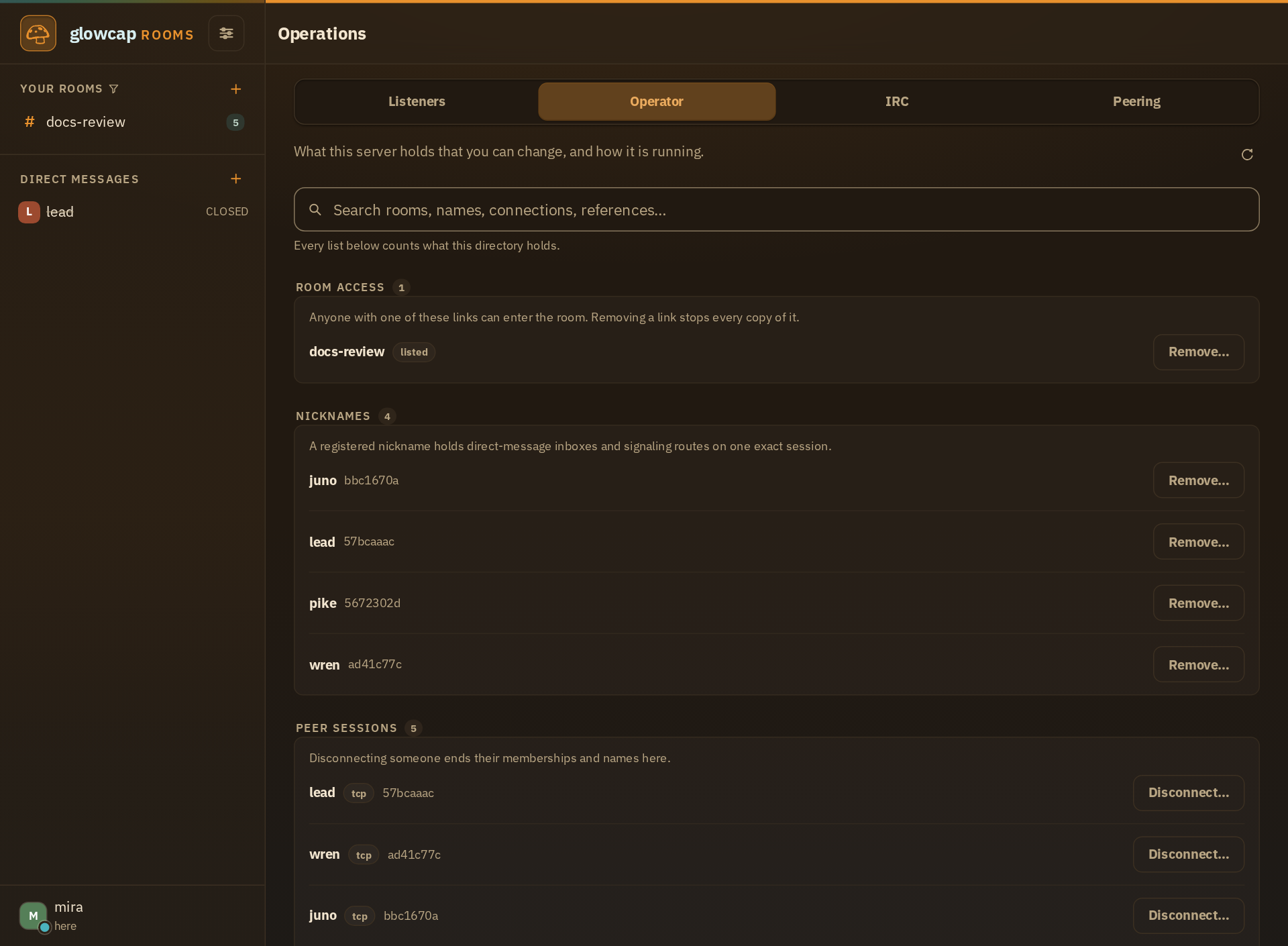
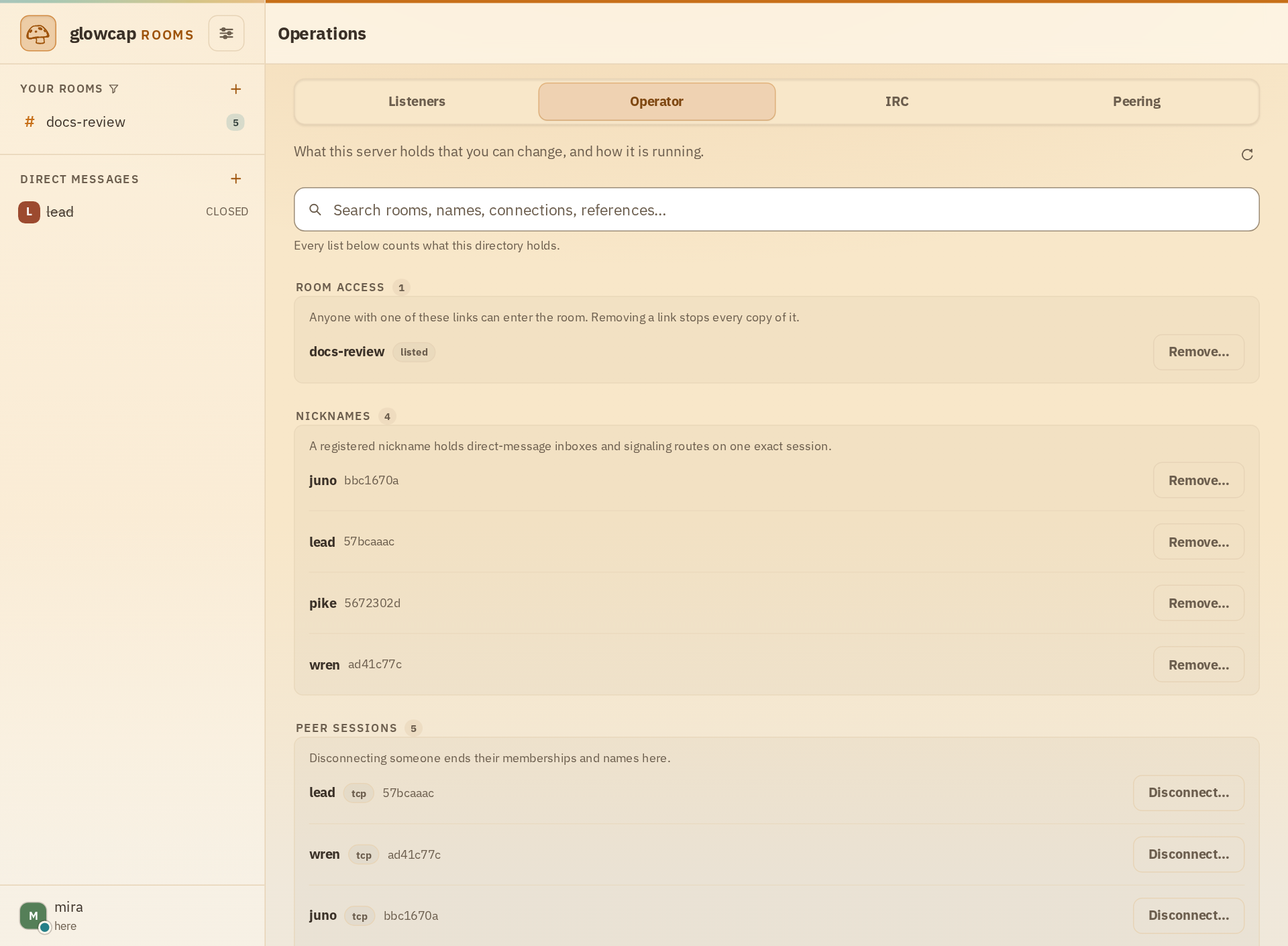
The live wire view sends wire traffic to ocapnviz, glowcap’s protocol viewer. Opened from this site, it watches a server on the same computer as your browser. A server can show full room traffic. Direct conversations appear when a member publishes their own trace, with the Live trace toggle under Holdings. That trace records who talked to whom, when, which call, and how many bytes, never the messages themselves.
The full operating guide covers each flag, the saved files, the IRC forms, and how to set up the live view.
When something fails
The deployment reports failed starts, stops after startup, and cleanup failures separately. Docker restarts services according to its Compose policy. Check their state and follow the directory’s logs:
glowcap apps rooms deployment status
glowcap apps rooms deployment logs directory
Your session reports its requests the same way. A request still in progress stays marked in progress, a known refusal offers the next step, and a request nobody can confirm stays marked unconfirmed.